
Customer Accounts
Download this Setup Guide
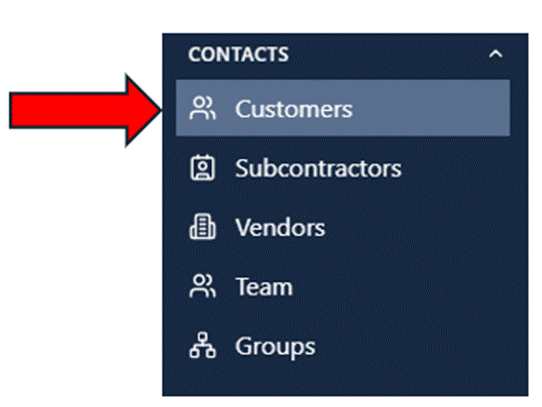
If you need assistance with a bulk import of customers, please email support with your business name and info along with your customer database in excel or .csv format.
Dashboard Overview
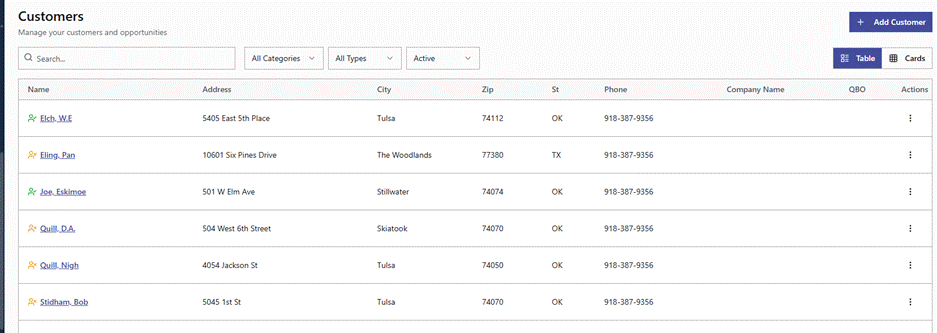
The primary table displays a comprehensive list of your customers with the following key details:
- Name: The client’s name, which often functions as a clickable link to their full profile.
- Address Information: A quick reference for the client’s location, including their Street Address, City, Zip Code, and State.
- Phone: The primary contact number for the customer.
- Company Name: Identifies if the customer is associated with a specific business entity.
- QBO: Displays the synchronization status with QuickBooks Online for financial tracking.
- Actions: A three-dot menu on the far right of each row provides options for individual customer management.
Navigation and Filtering Tools
To help you manage a growing database, the dashboard includes several powerful search and organization features:
- Search Bar: Quickly locate a specific client by typing their name or identifying other details.
- Dropdown Filters: Narrow your view using multiple criteria:
- All Categories: Filter by customer classification.
- All Types: Filter by the type of project or lead.
- Active Status: Toggle between active, inactive, or archived customers.
- View Toggle: Switch between the detailed Table view (currently active) and a more visual Cards view.
- Sortable Columns: You can click on column headers to sort your customer list alphabetically or by location for better organization.
Add Customer: Click the blue + Add Customer button in the top-right corner
Primary Contact Information
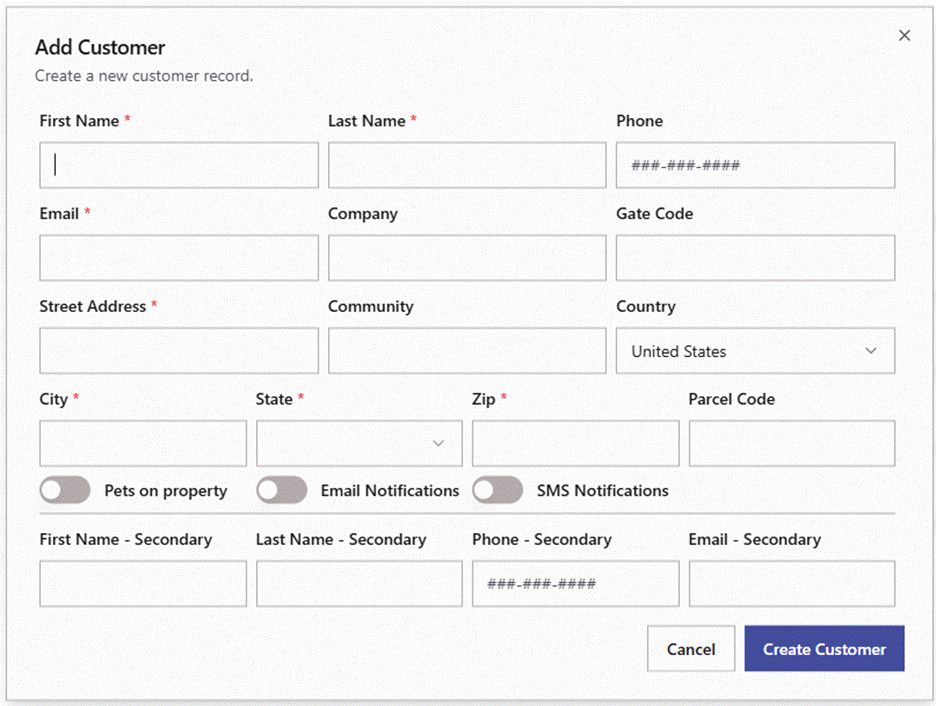
This section gathers the identity and direct contact details of the lead or client:
- First and Last Name: Required fields for the primary individual.
Email: A required field used for project communication and portal access.
Phone: The primary contact number for the customer.
Company: Captures the business entity if the customer is a commercial lead.
Full Address: Includes required fields for Street Address, City, State, and Zip.
Community: An optional field for neighborhood or subdivision names.
Gate Code: A specific field for secure site access.
Parcel Code: For recording legal land identifiers or property tax IDs.
Pets on Property: A toggle to alert field teams of animals on-site.
Email/SMS Notifications: Toggles to opt the customer into automated project updates.
Secondary Contact
This section allows for the entry of a second individual (such as a spouse or co-owner) with their own Name, Phone, and Email fields.
Management Actions
- Create Customer: Saves the record and adds the individual to the master Customers dashboard.
Editing a Customer Record
To open this menu, locate the three-dot vertical icon on the far right of any customer row in the dashboard table.
Menu Options
- View: Selecting this option opens the full customer profile.
Edit: This allows you to update the customer’s existing record, such as changing contact information, updating an address, or modifying notification preferences.
Delete: A quick action to remove the customer record from your active database.
·